
Supported Authentication Types:
- Personal Access Token — Token-based workspace authentication generated from User Settings in Databricks
- Databricks OAuth — OAuth2 Machine-to-Machine authentication using Service Principal credentials
- Azure AD Setup — Azure Active Directory authentication using Azure Service Principal (for Azure Databricks workspaces)
- Requirements
- Unity Catalog
- Metadata Ingestion
- Query Usage
- Data Profiler
- Data Quality
- Lineage
- dbt Integration
- Troubleshooting
How to Run the Connector Externally
To run the Ingestion via the UI you’ll need to use the OpenMetadata Ingestion Container, which comes shipped with custom Airflow plugins to handle the workflow deployment. If, instead, you want to manage your workflows externally on your preferred orchestrator, you can check the following docs to run the Ingestion Framework anywhere.External Schedulers
Get more information about running the Ingestion Framework Externally
Requirements
Permission Requirement
To enable full functionality of metadata extraction, profiling, usage, and lineage features in OpenMetadata, the following permissions must be granted to the relevant users in your Databricks environment.Metadata and Profiling Permissions
These permissions are required on the catalogs, schemas, and tables from which metadata and profiling information will be ingested.Usage and Lineage
These permissions enable OpenMetadata to extract query history and construct lineage information.View Definitions
To extract view definitions, the user needs access to the information schema:Tags (Databricks 13.3+)
To extract Databricks tags on catalogs, schemas, tables, and columns, the following permissions are required:Unity Catalog
If you are using Unity Catalog in Databricks, then checkout the Unity Catalog connector.Metadata Ingestion
Connection Details
Connection Details
- Host and Port: Enter the fully qualified hostname and port number for your Databricks deployment in the Host and Port field.
- Authentication Type: Choose one of the following authentication methods:
- Personal Access Token — Provide a
tokengenerated from User Settings → Developer → Access Tokens in your Databricks workspace. - Databricks OAuth — Provide a
clientIdandclientSecretfor a Service Principal created in your Databricks Account Console. - Azure AD Setup — Provide
azureClientId,azureClientSecret, andazureTenantIdfor an Azure Service Principal registered in Azure Active Directory (for Azure Databricks workspaces only).
- Personal Access Token — Provide a
- HTTP Path: Databricks compute resources URL.
- Connection Timeout: The maximum amount of time (in seconds) to wait for a successful connection to the data source. If the connection attempt takes longer than this timeout period, an error will be returned.
- Catalog: Catalog of the data source (Example: hive_metastore). This is an optional parameter, if you would like to restrict the metadata reading to a single catalog. When left blank, OpenMetadata Ingestion attempts to scan all the catalogs.
- DatabaseSchema: Database schema of the data source. This is an optional parameter, if you would like to restrict the metadata reading to a single database schema. When left blank, OpenMetadata Ingestion attempts to scan all the database schemas.
- Query History Table: Table name to fetch the query history from. Defaults to
system.query.history.
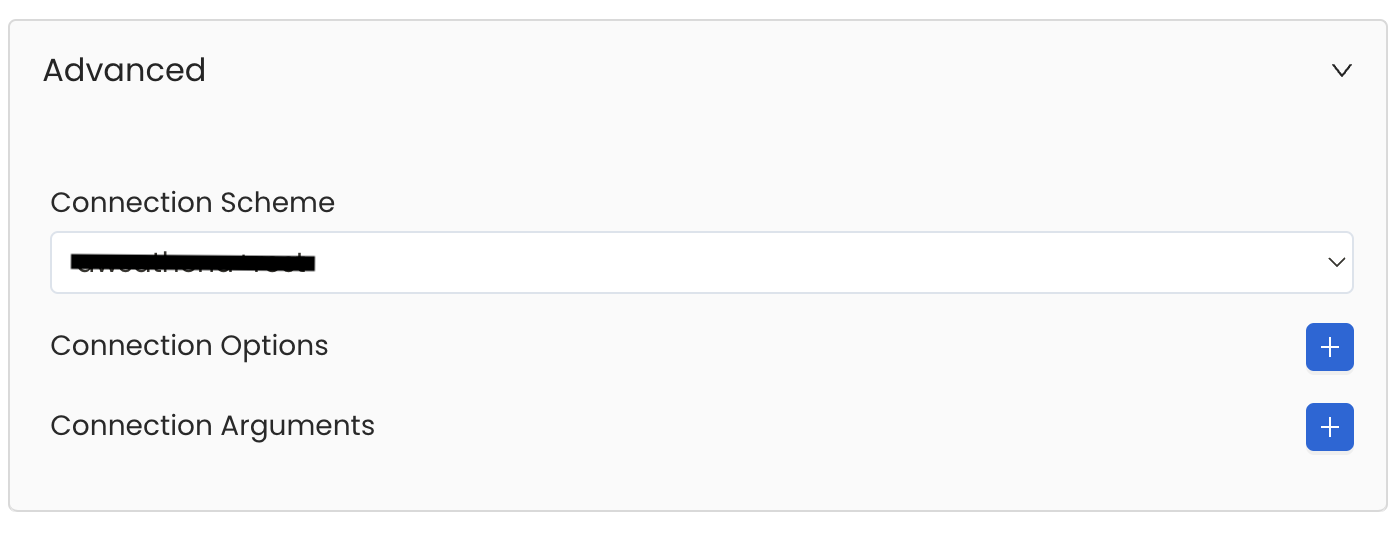
Advanced Configuration
Database Services have an Advanced Configuration section, where you can pass extra arguments to the connector
and, if needed, change the connection Scheme.This would only be required to handle advanced connectivity scenarios or customizations.
- Connection Options (Optional): Enter the details for any additional connection options that can be sent to database during the connection. These details must be added as Key-Value pairs.
-
Connection Arguments (Optional): Enter the details for any additional connection arguments such as security or protocol configs that can be sent during the connection. These details must be added as Key-Value pairs.
Test the Connection
Once the credentials have been added, click on Test Connection and Save the changes.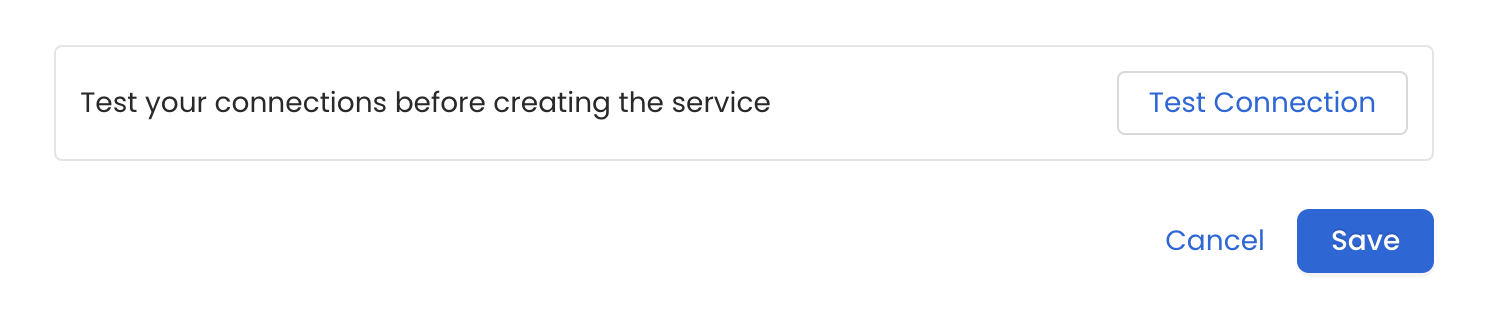
Configure Metadata Ingestion
In this step we will configure the metadata ingestion pipeline,
Please follow the instructions below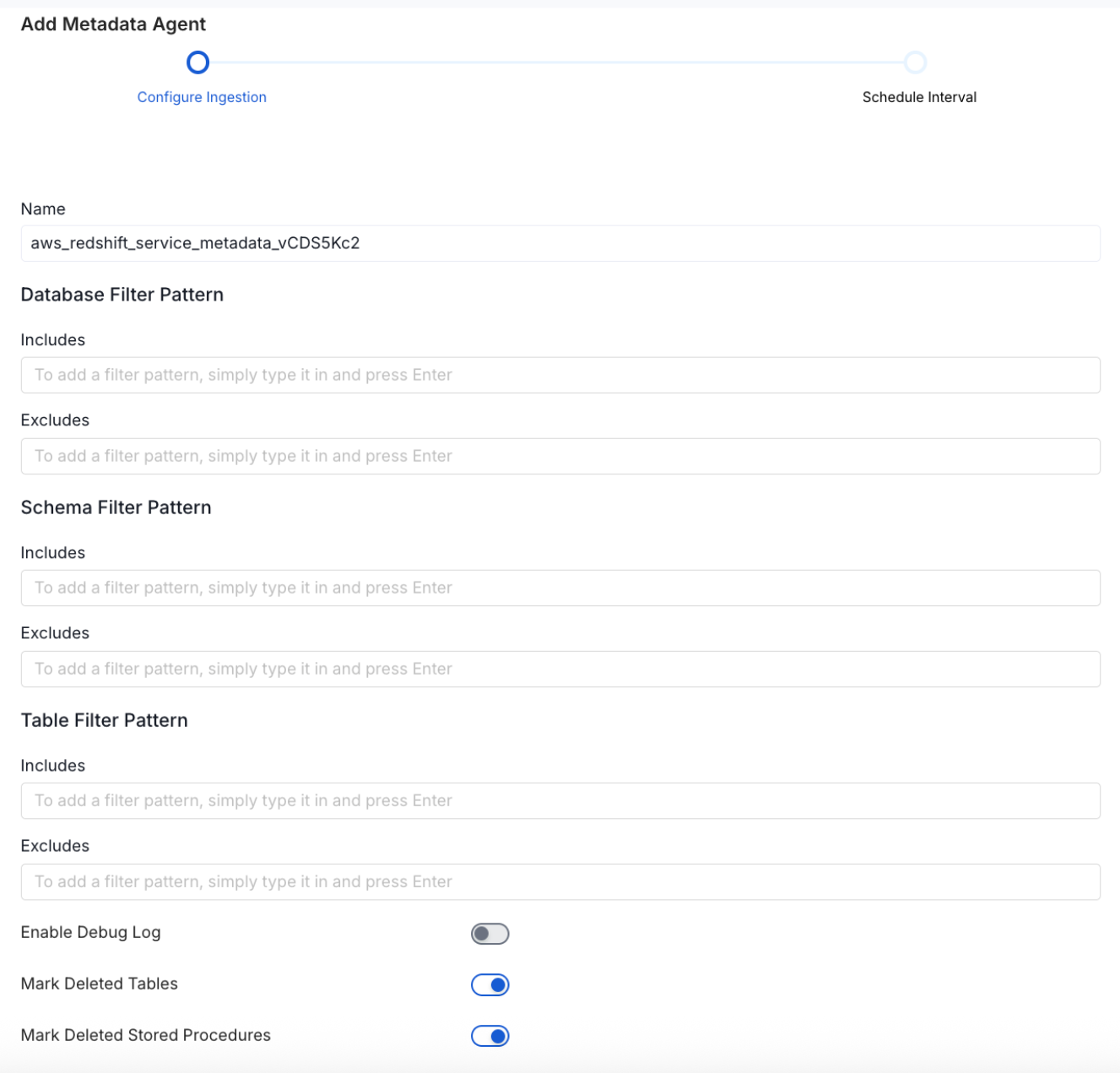
Metadata Ingestion Options
- Name: This field refers to the name of ingestion pipeline, you can customize the name or use the generated name.
-
Database Filter Pattern (Optional): Use to database filter patterns to control whether or not to include database as part of metadata ingestion.
- Include: Explicitly include databases by adding a list of comma-separated regular expressions to the Include field. OpenMetadata will include all databases with names matching one or more of the supplied regular expressions. All other databases will be excluded.
- Exclude: Explicitly exclude databases by adding a list of comma-separated regular expressions to the Exclude field. OpenMetadata will exclude all databases with names matching one or more of the supplied regular expressions. All other databases will be included.
-
Schema Filter Pattern (Optional): Use to schema filter patterns to control whether to include schemas as part of metadata ingestion.
- Include: Explicitly include schemas by adding a list of comma-separated regular expressions to the Include field. OpenMetadata will include all schemas with names matching one or more of the supplied regular expressions. All other schemas will be excluded.
- Exclude: Explicitly exclude schemas by adding a list of comma-separated regular expressions to the Exclude field. OpenMetadata will exclude all schemas with names matching one or more of the supplied regular expressions. All other schemas will be included.
-
Table Filter Pattern (Optional): Use to table filter patterns to control whether to include tables as part of metadata ingestion.
- Include: Explicitly include tables by adding a list of comma-separated regular expressions to the Include field. OpenMetadata will include all tables with names matching one or more of the supplied regular expressions. All other tables will be excluded.
- Exclude: Explicitly exclude tables by adding a list of comma-separated regular expressions to the Exclude field. OpenMetadata will exclude all tables with names matching one or more of the supplied regular expressions. All other tables will be included.
- Enable Debug Log (toggle): Set the Enable Debug Log toggle to set the default log level to debug.
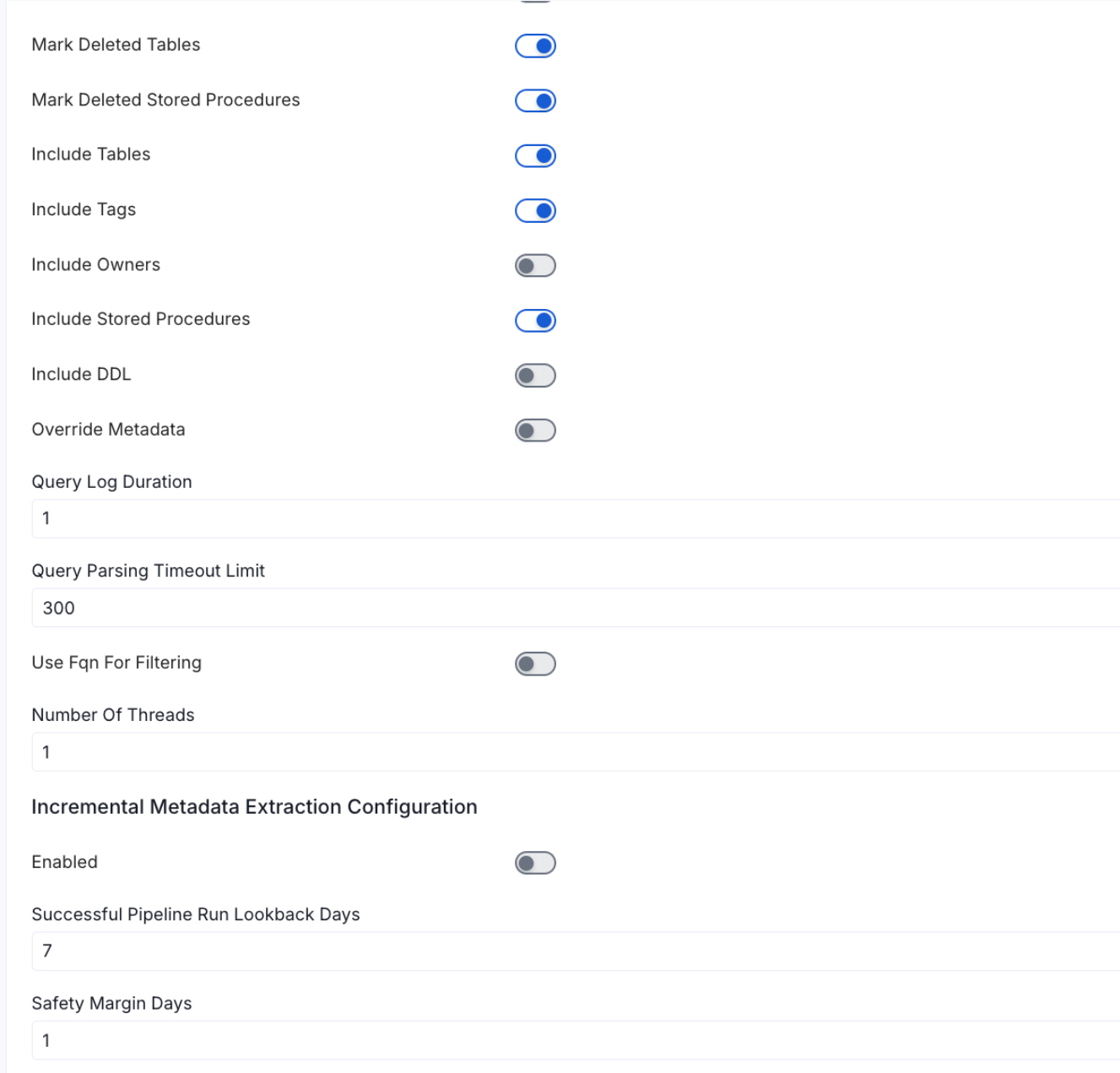
- Mark Deleted Tables (toggle): Set the Mark Deleted Tables toggle to flag tables as soft-deleted if they are not present anymore in the source system.
- Mark Deleted Tables from Filter Only (toggle): Set the Mark Deleted Tables from Filter Only toggle to flag tables as soft-deleted if they are not present anymore within the filtered schema or database only. This flag is useful when you have more than one ingestion pipelines. For example if you have a schema
- includeTables (toggle): Optional configuration to turn off fetching metadata for tables.
- includeViews (toggle): Set the Include views toggle to control whether to include views as part of metadata ingestion.
- includeTags (toggle): Set the ‘Include Tags’ toggle to control whether to include tags as part of metadata ingestion.
- includeOwners (toggle): Set the ‘Include Owners’ toggle to control whether to include owners to the ingested entity if the owner email matches with a user stored in the OM server as part of metadata ingestion. If the ingested entity already exists and has an owner, the owner will not be overwritten.
- includeStoredProcedures (toggle): Optional configuration to toggle the Stored Procedures ingestion.
- includeDDL (toggle): Optional configuration to toggle the DDL Statements ingestion.
- queryLogDuration (Optional): Configuration to tune how far we want to look back in query logs to process Stored Procedures results.
- queryParsingTimeoutLimit (Optional): Configuration to set the timeout for parsing the query in seconds.
- useFqnForFiltering (toggle): Regex will be applied on fully qualified name (e.g service_name.db_name.schema_name.table_name) instead of raw name (e.g. table_name).
-
Incremental (Beta): Use Incremental Metadata Extraction after the first execution. This is done by getting the changed tables instead of all of them. Only Available for BigQuery, Redshift and Snowflake
- Enabled: If
True, enables Metadata Extraction to be Incremental. - lookback Days: Number of days to search back for a successful pipeline run. The timestamp of the last found successful pipeline run will be used as a base to search for updated entities.
- Safety Margin Days: Number of days to add to the last successful pipeline run timestamp to search for updated entities.
- Enabled: If
- Threads (Beta): Use a Multithread approach for Metadata Extraction. You can define here the number of threads you would like to run concurrently.
Schedule the Ingestion and Deploy
Scheduling can be set up at an hourly, daily, weekly, or manual cadence. The
timezone is in UTC. Select a Start Date to schedule for ingestion. It is
optional to add an End Date.Review your configuration settings. If they match what you intended,
click Deploy to create the service and schedule metadata ingestion.If something doesn’t look right, click the Back button to return to the
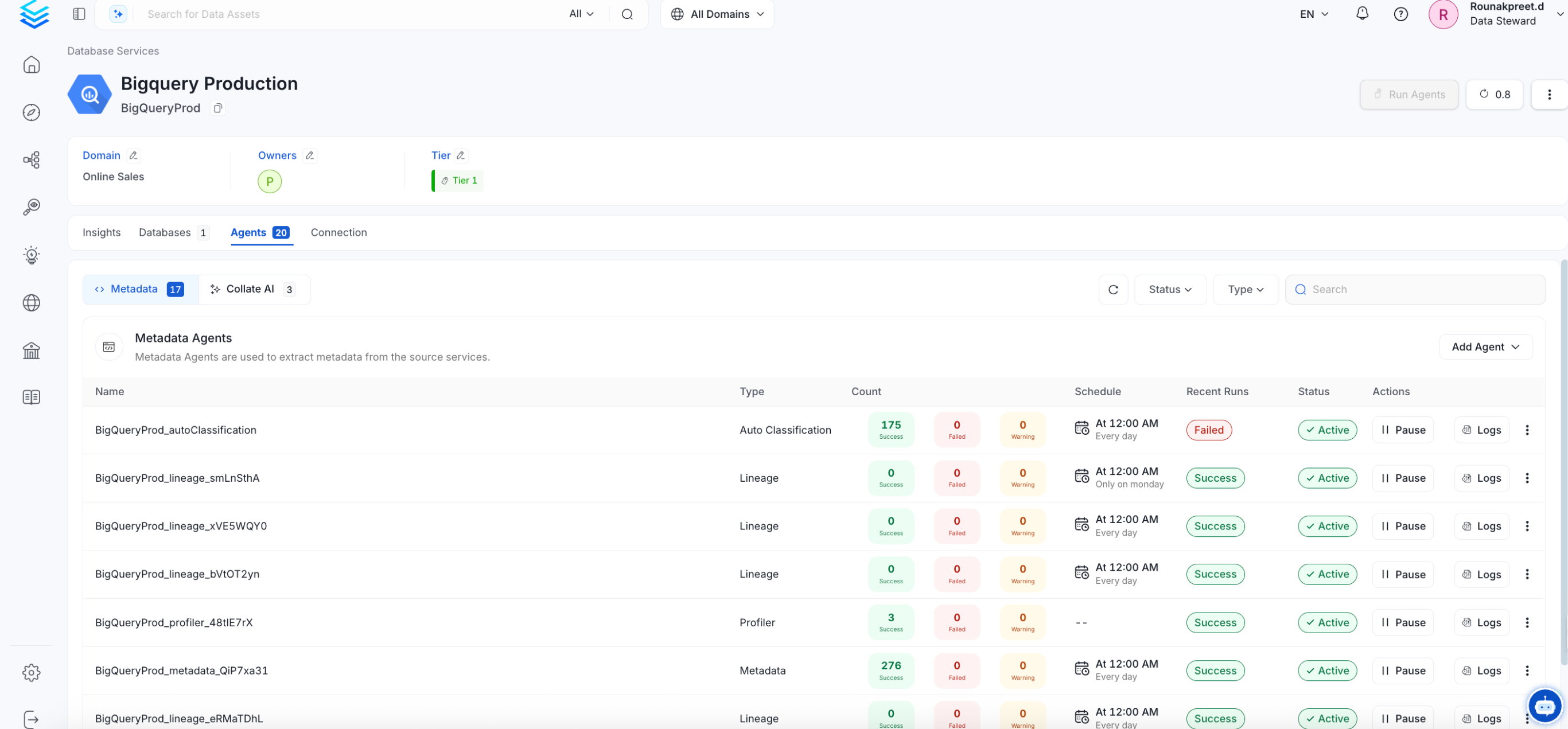
appropriate step and change the settings as needed.After configuring the workflow, you can click on Deploy to create the
pipeline.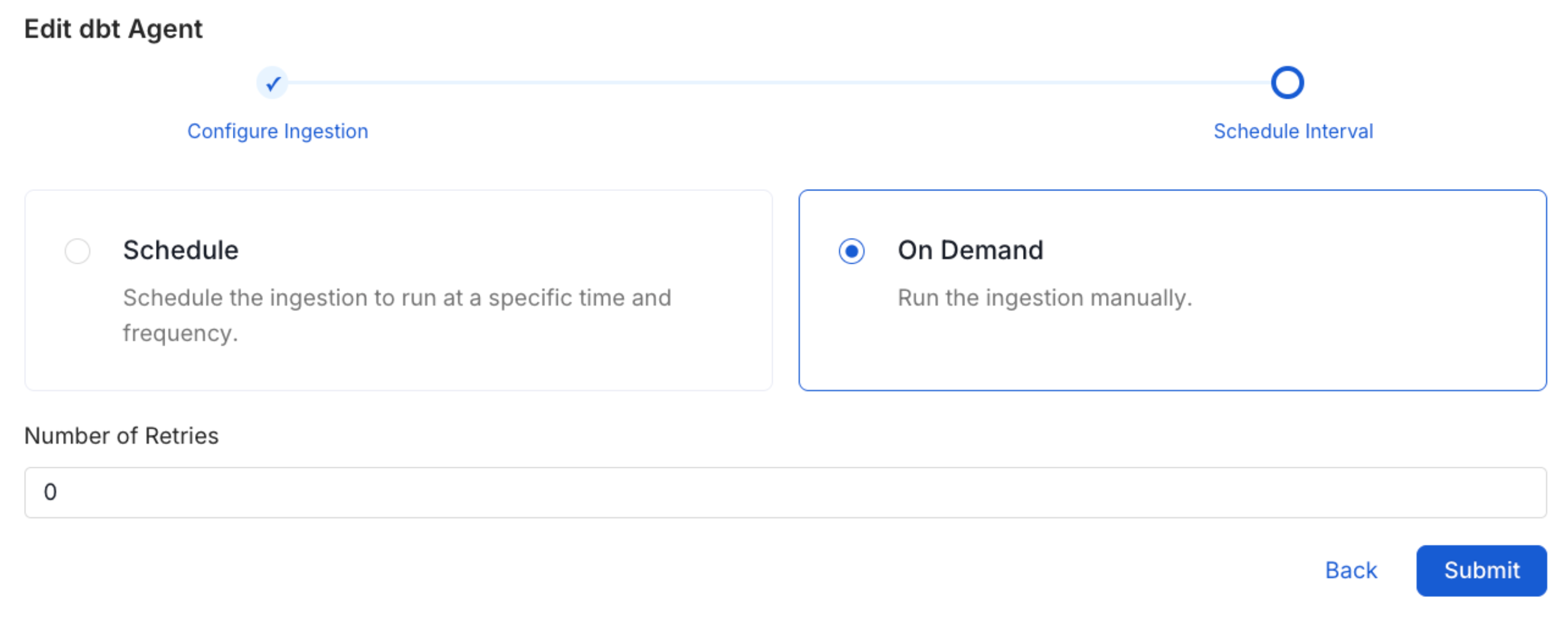
Related
Usage Workflow
Learn more about how to configure the Usage Workflow to ingest Query information from the UI.
Lineage Workflow
Learn more about how to configure the Lineage from the UI.
Profiler Workflow
Learn more about how to configure the Data Profiler from the UI.
Data Quality Workflow
Learn more about how to configure the Data Quality tests from the UI.
dbt Integration
Learn more about how to ingest dbt models’ definitions and their lineage.